Social media planner and calendar
Write a post once, see roughly how it looks on each network and put it on a week calendar with a row for every client, each in their own time zone.
Free during early access.
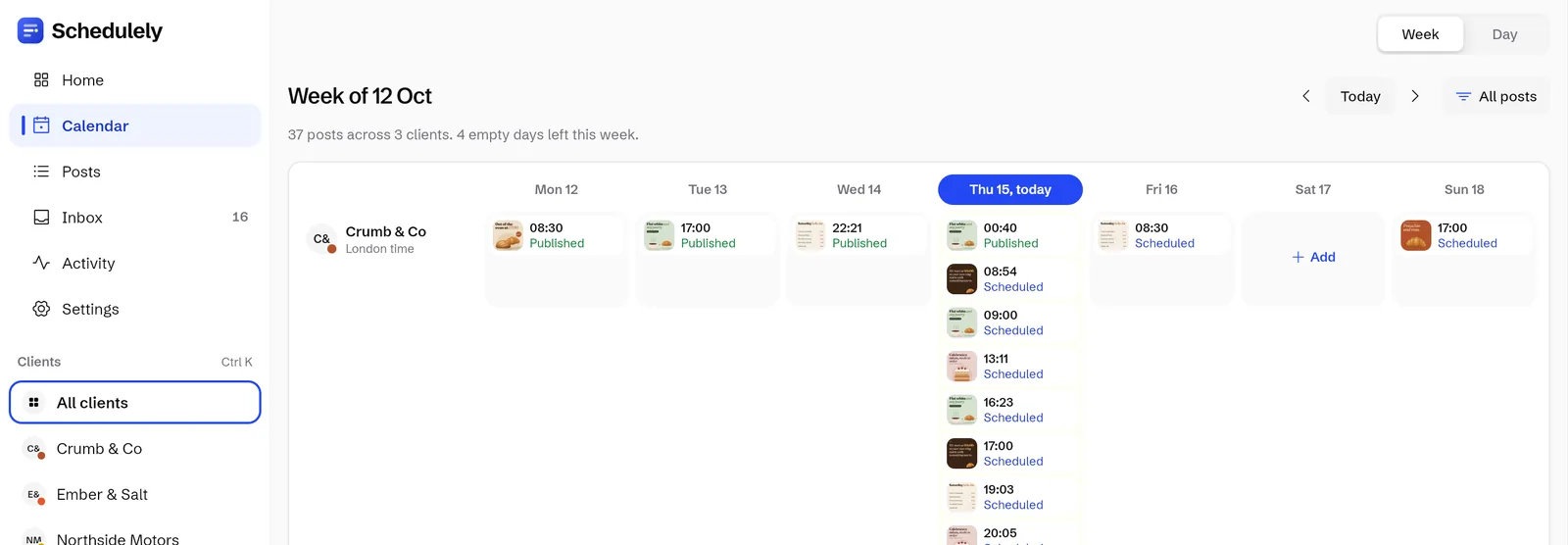
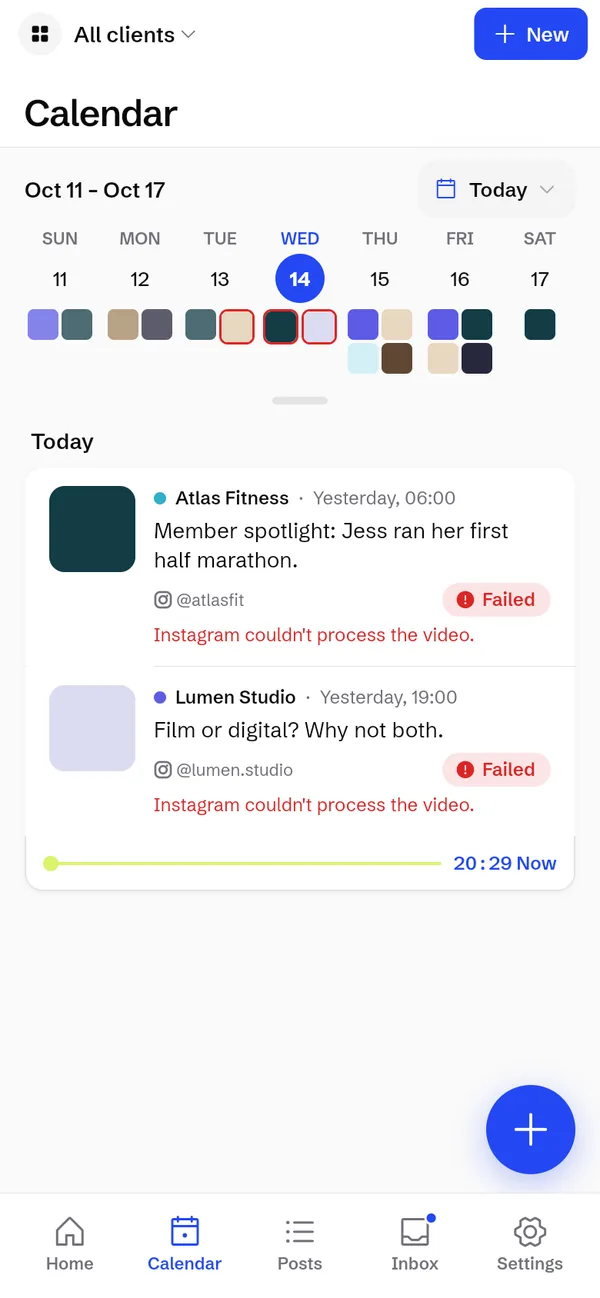
The real app with made up example clients. Every business here is made up and every post was designed for this page. If a name or location matches a real business, it is a coincidence and not related to them.
What it does
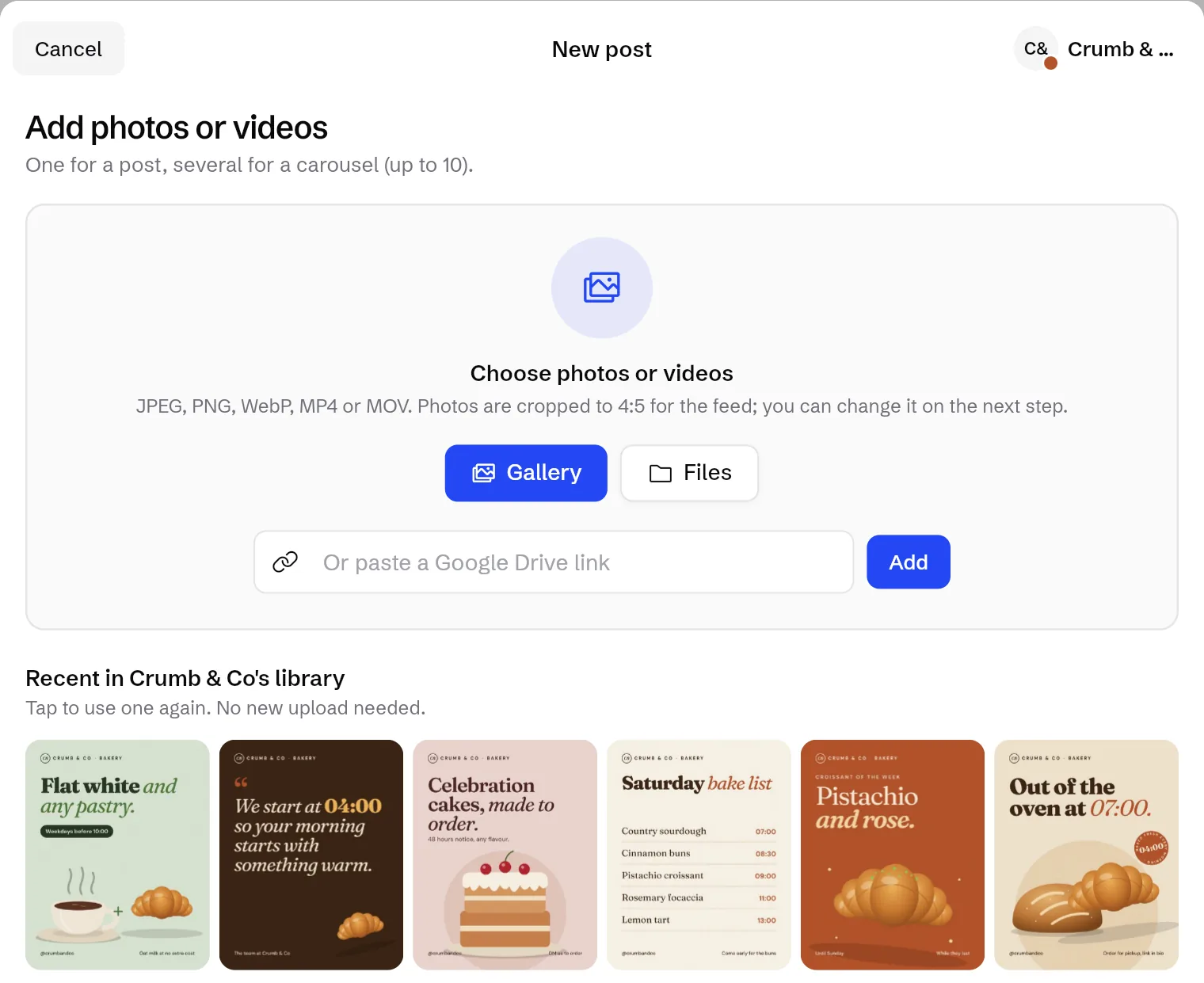
- Add photos, videos and carousels
- From your computer, your phone, a Google Drive link (the file downloads for you) or the client's library, so a photo you used before needs no new upload.
- Preview for each network
- Before you schedule, a preview for each network shows roughly how the post will look there.
- Week and day calendar
- One row per client, each in their own time zone. Open a day to see it hour by hour, and use Add on an empty day to fill the gap.
- Instagram Stories
- Several frames go up in order, 1 minute or 1 hour apart.
- Posts list
- Upcoming, Drafts, Published and Failed. Select many posts and move or copy them to another account of the same client.
- Posts that look after themselves
- If an account signs out, its posts wait safely and carry on when you reconnect. If a post fails, you see it straight away and retry in 1 tap.
How it works
5 steps, in the order you do them in the app.
Pick the client and add media
Start a new post, then choose photos or videos from Gallery or Files, paste a Google Drive link, or tap something from the client's library.
Write and preview
Write the caption, choose the accounts it goes to and check the preview for each network.
Pick a time
Times follow the client's own time zone, so 09:00 means 09:00 where the client is.
Check the week
The post appears on the calendar in that client's row. Open a day for the hour by hour view.
Keep an eye on Posts
Upcoming, Drafts, Published and Failed sit in their own tabs. A failed post shows up straight away, and 1 tap retries it.
Try it on your own accountsSign up with email or Google. Nothing to install.
Free during early access.
Good to know
- Photos are cropped to 4:5 for the Instagram feed, and you can change the crop on the next step.
- Each client can have 1 main Instagram account.
- If an account signs out, its posts wait and go out once you reconnect. Nothing is lost.
- Posting to X is free during early access. After that it is a separate $10 a month for any plan, because X charges apps for every post.
Questions
Can I add a photo from Google Drive?
Yes. Paste the Drive link and the file downloads for you. In Drive, set sharing to Anyone with the link first.
What happens if a client's account signs out?
Its posts wait safely and carry on when you reconnect the account.
What if a post fails?
You see it straight away in Failed on the posts list and on your home screen, and you can retry it in 1 tap.
Which networks does Schedulely work with?
All 14 are live today: Instagram, Facebook Pages, X, TikTok, YouTube, LinkedIn, Threads, Pinterest, Google Business, Bluesky, Mastodon, Tumblr, Telegram and Discord. Each workspace picks the networks it wants and hides the rest. The inbox and outreach work with Instagram.
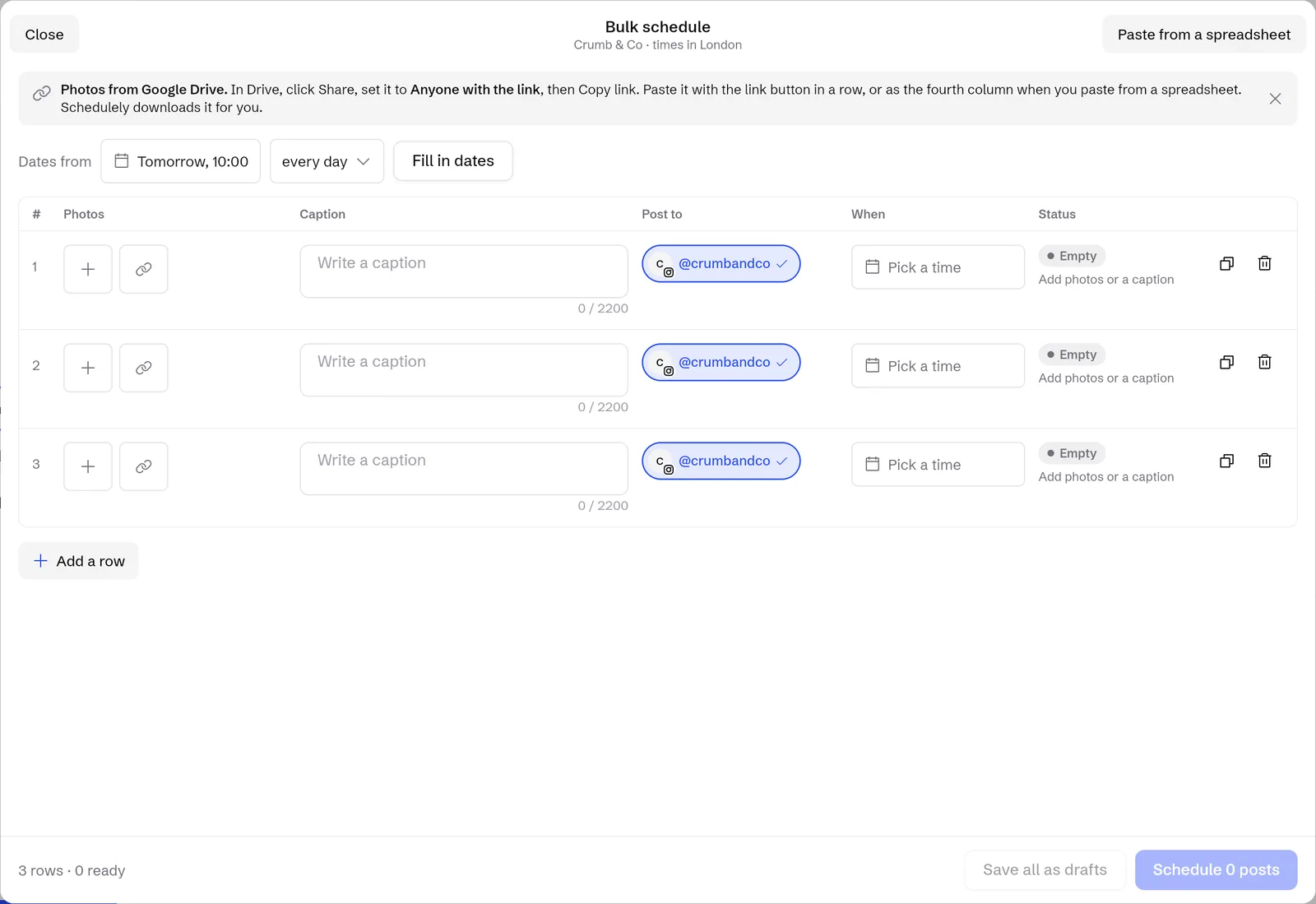


Start free today
Everything that is built today is free during early access. Plans start later, and we will tell you well before anything is charged.
Free during early access.